My Notetaker for Chrome
With the Chrome extension you record online meetings in Google Meet, Microsoft Teams and Zoom, right in your browser. No bot needs to join the meeting. Afterwards, the transcript, a summary, action items and a sentiment analysis are ready in your account, and the conversation content stays in the EU.
Add to Chrome Free to install from the Chrome Web Store. You need a My Notetaker account.
What the extension does
- Records your meeting. The audio of the tab with the meeting and, if you like, your own microphone. That way every participant is on the recording, including you.
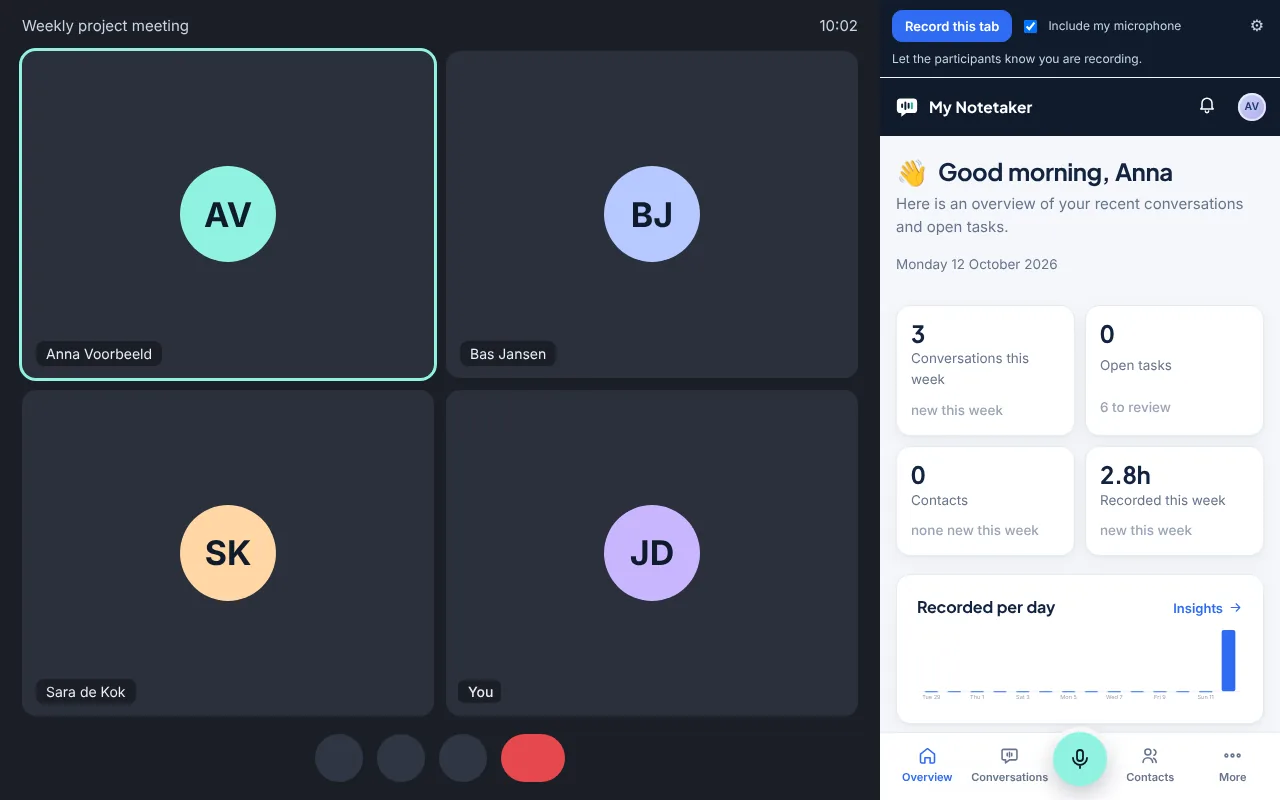
- Shows My Notetaker next to your meeting. In the Chrome side panel you see your conversations, tasks and contacts without switching tabs.
- Puts everything in your own memory. Within a few minutes after the meeting, the transcript per speaker, the summary and the action items are in your account.
How it works
- Add My Notetaker to Chrome from the Chrome Web Store. Do you see Proceed with caution? Chrome shows that for every new extension in its first months. Choose Continue to install.
- Click the extension icon. My Notetaker opens in the side panel; log in there with your account.
- Open your meeting, click the icon and choose Record this tab. Tick Include my microphone if your own voice should be included.
- Click Stop when the meeting is over. Within a few minutes everything is in your account.
Recording without the panel
- Shortcut: press Alt+Shift+R to record the tab you are on, and again to stop.
- Pause: pause the recording and carry on where you were. The pause is not in the recording.
- Record button in every tab (optional): turn it on in the panel and a small button appears at the bottom right of every tab to record, pause and stop. Chrome asks your permission once. The button reads nothing from the page.
- Recognize meetings (optional): when you open a meeting in Google Meet, Teams or Zoom in the browser, a bar with Record appears at the top of the page and the icon gets a green dot. One click on the icon starts the recording right away. The extension recognizes the meeting by the address of the tab. If you record it, the participants' names come along, so My Notetaker can suggest them for the speakers. It never starts by itself: Chrome always asks for your click.
- Stops by itself: when you leave the meeting or it is quiet for 5 minutes, the recording stops and what was recorded is processed. You can turn this off in the panel.
Works with
- Google Meet in Chrome.
- Microsoft Teams in the browser (teams.microsoft.com).
- Zoom in the browser (join from your browser).
- Any other meeting or webinar that plays in a Chrome tab.
- The Teams or Zoom desktop app on Windows.
Meetings in the desktop app (Windows)
Using the Teams or Zoom desktop app on Windows? Click Record meeting in desktop app in the panel. Chrome asks what you want to share: choose Entire screen and turn on Also share system audio. My Notetaker keeps only the sound, not your screen. Note: this records all sound on your computer, including notifications and music. On a Mac, Chrome cannot share system audio: open the meeting in your browser there. On your phone or watch, record with the app.
Privacy
- Only after your click. The extension only records the tab where you click Record this tab yourself, or on Windows the system audio after you choose the screen yourself, and stops when you stop. Your browsing history and other tabs stay out of it.
- Nothing gets lost. The recording stays safely on your computer until it is complete in your account.
- Conversation content stays in the EU and only you can see your conversations, also within a team.
- Not used to train AI.
- Let the participants know you are recording. The extension reminds you of that too.
All details are in the privacy statement, the list of sub-processors and the data processing agreement.
What you need
- Google Chrome on your computer (Windows, macOS, Linux or ChromeOS).
- A My Notetaker account. Try everything free for 14 days, without payment details.
Frequently asked questions
Is the Chrome extension free?
The extension itself is free to install. You do need a My Notetaker account. Try everything free for 14 days, then choose a plan from €12 per month including VAT. See the prices.
Does the extension work with Google Meet, Microsoft Teams and Zoom?
Yes, with Google Meet, Microsoft Teams and Zoom in Chrome. On Windows you can also record meetings in the Teams or Zoom desktop app: choose Entire screen and share the system audio. On a Mac, open the meeting in your browser.
Does a bot join my meeting?
No. The extension records the audio of the tab or, with a desktop app, the system audio on your own computer. Nobody extra joins the meeting.
Is my own voice recorded too?
If you tick Include my microphone, yes. Then every participant is on the recording, including you. Chrome asks for permission to use your microphone the first time.
What if my internet drops while recording?
The recording continues and stays safely on your computer. As soon as you are connected again, the rest goes to your account. The extension only deletes the recording once it has arrived completely.
Do I have to tell the participants that I am recording?
Yes. Always tell the participants that you are recording and why. Only record meetings you take part in yourself.
Try My Notetaker free for 14 days. No payment details needed.
Sources
This page is general information, not legal advice. Discuss your own situation with your data protection officer or lawyer.